Duplicating an order in WooCommerce can save time when you need to create a new order based on an existing one. Instead of manually adding the same products, customer details, billing information, shipping address, and other order data again, you can copy the existing order and make only the necessary changes.
However, WooCommerce does not include a built-in option to duplicate orders. To add this functionality, you can use an order duplication plugin.
In this guide, we’ll show you how to duplicate an order in WooCommerce in just a few clicks.
Why Duplicate an Order in WooCommerce?
There are many situations where creating a copy of an existing WooCommerce order can be useful.
For example, you may need to:
- Recreate a previous customer order.
- Create a similar order with slightly different products or quantities.
- Process recurring or repeat orders manually.
- Create test orders based on real order data.
- Replace an incorrectly created order without having to enter all the details again.
- Speed up administrative order management.
For stores that frequently create or modify orders manually, an order duplication feature can significantly reduce repetitive work.
Can You Duplicate an Order in WooCommerce by Default?
No. WooCommerce does not currently provide a built-in Duplicate Order button.
You can manually create a new order and copy the products and customer information from the original order, but this can be slow and error-prone, especially for orders containing many line items.
The easiest solution is to use a plugin that adds order duplication functionality directly to the WooCommerce admin area.
How to Duplicate a WooCommerce Order
The easiest way to duplicate an order is with the Order Duplicator for WooCommerce plugin by Plugnition.
The plugin adds a Duplicate action to your WooCommerce orders list, allowing you to create a copy of an existing order with a single click.
Step 1: Install Order Duplicator for WooCommerce
First, install and activate the free Plugnition Order Duplicator for WooCommerce plugin from WordPress.org.
You can install it directly from your WordPress dashboard by going to Plugins → Add Plugin and searching for Plugnition Order Duplicator.
Once activated, the plugin automatically adds order duplication functionality to your WooCommerce admin area.
No complicated configuration is required to get started.
Step 2: Open the WooCommerce Orders Page
In your WordPress dashboard, go to:
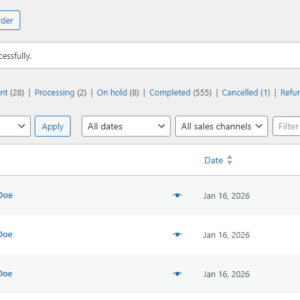
WooCommerce → Orders
Find the order you want to duplicate.
Step 3: Click the Duplicate Action
Hover over the order in the orders list and click Duplicate.
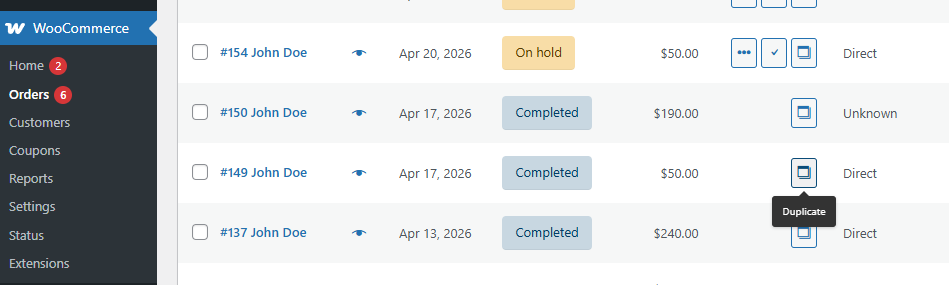
The plugin will create a new order based on the original order.
Depending on the order data and plugin configuration, the duplicated order can include information such as:
- Products and variations.
- Product quantities.
- Customer information.
- Billing address.
- Shipping address.
- Shipping methods.
- Fees.
- Coupons.
- Taxes.
- Order metadata.
The original order remains unchanged.
Step 4: Review and Edit the New Order
After duplicating the order, review the new copy before processing it.
You may want to change:
- Order status.
- Products or quantities.
- Customer details.
- Billing or shipping addresses.
- Shipping method.
- Payment method.
- Order notes.
Once everything is correct, save the order and continue processing it as usual.
Duplicate Multiple WooCommerce Orders at Once
If you need to copy several orders, duplicating them individually can still take time.
The Order Duplicator for WooCommerce Pro plugin supports bulk order duplication, allowing you to select multiple orders from the WooCommerce orders list and duplicate them using a bulk action.
This is particularly useful for stores that regularly recreate batches of orders or use existing orders as templates.
Does Order Duplication Work With WooCommerce HPOS?
Yes. The Order Duplicator for WooCommerce plugin is designed to work with WooCommerce High-Performance Order Storage (HPOS).
HPOS stores WooCommerce order data in dedicated database tables instead of the traditional WordPress posts and postmeta tables, improving scalability and performance for stores with large numbers of orders.
Using an HPOS-compatible order duplication plugin ensures that orders are copied using WooCommerce’s supported order APIs.
What Happens to the Original Order?
Nothing. Duplicating an order creates a separate new order and leaves the original order unchanged.
The new order receives its own unique order ID and can be edited, processed, or deleted independently.
This makes duplication useful when you want to use an existing order as a starting point without risking accidental changes to the original.
Duplicate Order vs. Customer “Order Again” Feature
WooCommerce includes an Order again feature for customers, but it is different from duplicating an order in the WordPress admin area.
The Order again feature allows a customer to add products from a previous order back to their shopping cart. It does not create an exact administrative copy of the order.
An admin order duplication feature, on the other hand, creates a new WooCommerce order based directly on an existing one and can preserve additional order information.
When Should You Duplicate an Order?
Order duplication is especially useful for:
- Wholesale stores that regularly receive similar repeat orders.
- B2B stores where administrators manually create orders for customers.
- Phone and email orders that require manual entry.
- Recurring manual orders without a subscription system.
- Testing and development when similar order data is needed repeatedly.
- Customer service teams that recreate or replace existing orders.
For these workflows, duplicating an existing order is usually faster than starting from an empty order.
Frequently Asked Questions
Can I duplicate a WooCommerce order without a plugin?
WooCommerce does not provide a built-in admin option for duplicating an entire order. You can create a new order manually or write custom code, but using a dedicated plugin is generally the simplest solution.
Does duplicating an order affect the original order?
No. The original order remains unchanged. A new and independent WooCommerce order is created.
Does the duplicated order get a new order ID?
Yes. Every duplicated order is created as a separate order and receives its own unique order ID.
Can I edit the duplicated order?
Yes. After duplication, you can edit the new order just like any other WooCommerce order.
Can I duplicate multiple orders at once?
Yes, if your order duplication plugin supports bulk actions. Order Duplicator for WooCommerce includes bulk duplication functionality.
Is order duplication compatible with HPOS?
Yes. The Order Duplicator for WooCommerce plugin supports WooCommerce High-Performance Order Storage (HPOS).
Get Started with WooCommerce Order Duplication
Use the free version to duplicate individual WooCommerce orders directly from the orders list or order edit page. When you need to process multiple orders at once, upgrade to Pro for bulk duplication.
Conclusion
WooCommerce does not include a built-in Duplicate Order option, but adding this functionality can significantly speed up order management.
With Order Duplicator for WooCommerce, you can create a copy of an existing order directly from the WooCommerce orders list, preserving relevant order data while leaving the original order untouched.
This is particularly useful for repeat orders, wholesale and B2B stores, manually created orders, customer service workflows, and testing.
Instead of rebuilding similar orders from scratch, you can duplicate an existing order, make the necessary changes, and continue processing it in just a few clicks.
The free version is suitable for duplicating individual orders, while the Pro version adds bulk duplication for stores that need to process multiple orders more efficiently.
In both cases, the original order remains unchanged, and every duplicated order receives its own order ID so it can be reviewed and edited independently.
Recommended Plugins
-
WooCommerce Order Checklist
Adds an internal checklist to WooCommerce orders so store staff can track fulfillment, verification, and custom order tasks.
-
WooCommerce Order Duplicator
Duplicate WooCommerce orders with one click, bulk actions, settings, notes support, and HPOS compatibility.
-
WooCommerce Order Item Cost Editor
Edit WooCommerce individual order item prices (not just the line total) with the “WooCommerce Order Item Cost Editor” plugin.
-
WooCommerce Order Merge
Merge WooCommerce order items, fees, shipping lines, coupons, notes, and customer details into a target order without deleting source orders.
-
WooCommerce Order Note Templates
Create reusable order note templates and insert them into WooCommerce orders with one click, including prompt-based variables.
-
WooCommerce Order Splitter
Split selected WooCommerce order items into a new child order from the admin order screen.
-
WooCommerce Order Tags
Tag, organize, and find WooCommerce orders faster.
-
WooCommerce Order Timeline
Adds a clean internal order timeline to WooCommerce orders, showing key order events, notes, status changes, and manual timeline entries.