WooCommerce does not include a built-in way to split an existing order into multiple separate orders. However, there are many situations where splitting an order can simplify fulfillment, shipping, inventory management, and customer service.
For example, you may need to split an order when products ship from different warehouses, when some items are delayed or backordered, or when an order contains products that require different fulfillment methods.
In this guide, we’ll explain what it means to split a WooCommerce order, when it can be useful, and how to split an order into multiple orders using the Order Splitter for WooCommerce plugin.
What Does It Mean to Split a WooCommerce Order?
Splitting a WooCommerce order means taking one existing order and moving selected products into a newly created separate order.
For example, suppose a customer places this order:
- 2 × T-shirts
- 1 × Hoodie
- 1 × Pair of shoes
You could split the pair of shoes into a separate order. The result would be:
Original order:
- 2 × T-shirts
- 1 × Hoodie
New order:
- 1 × Pair of shoes
This allows each order to be processed, shipped, and managed separately.
Why Split WooCommerce Orders?
There are several common reasons why a store owner may need to split an order.
Ship Products Separately
Some products may need to be shipped separately because of their size, weight, packaging requirements, or shipping method.
By moving those products into a separate order, you can manage each shipment independently.
Fulfill Products from Different Warehouses
If you store products in different warehouses or fulfillment locations, splitting the order can make it easier to assign and process each part separately.
For example, products from Warehouse A can remain in the original order, while products from Warehouse B can be moved into a new order.
Handle Backordered or Delayed Products
If one or more products are temporarily unavailable, you may want to ship the available products immediately and process the delayed items later.
Splitting the delayed products into a separate order makes it easier to track their fulfillment status without holding up the rest of the order.
Separate Products by Vendor or Supplier
Multi-vendor stores and businesses working with multiple suppliers may need separate orders for products fulfilled by different vendors.
Splitting the original customer order can help organize fulfillment and make order management easier.
Use Different Order Statuses
Different parts of the same purchase may be at different stages of fulfillment.
For example:
- The original order may be marked as Completed.
- The new order containing delayed products may remain Processing or On hold.
Separate orders allow you to track each group of products independently.
How to Split a WooCommerce Order
The easiest way to split an existing WooCommerce order is to use the Order Splitter for WooCommerce plugin.
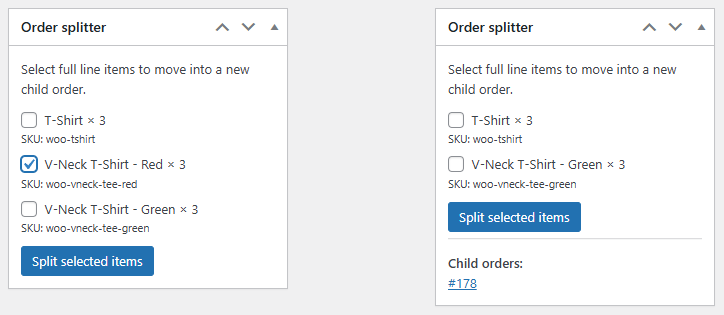
The plugin allows store administrators to select specific order items and move them into a newly created order directly from the WooCommerce order editing screen.
Step 1: Install and Activate the Plugin
First, install and activate the Order Splitter for WooCommerce plugin.
Once activated, the plugin adds order-splitting functionality to the WooCommerce admin area.
Step 2: Open the WooCommerce Order
In your WordPress dashboard, go to:
WooCommerce → Orders
Open the order you want to split.
The order should contain at least two items so that one or more products can be moved into a separate order.
Step 3: Select the Items to Split
In the order items section, select the products you want to move into a new order.
For example, if an order contains five different products and two need to be shipped from another warehouse, select those two products.
Step 4: Split the Order
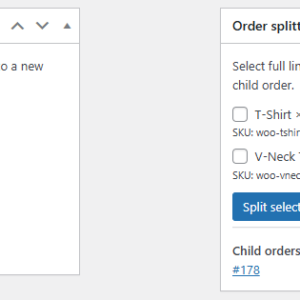
Use the available Split selected items action to create a new order from the selected items.
The plugin creates a separate WooCommerce order containing the selected products, while the remaining products stay in the original order.
Step 5: Review Both Orders
After splitting the order, review both the original and newly created orders.
Check that:
- The correct products are in each order.
- Product quantities are correct.
- Customer and billing details have been copied correctly.
- Shipping details are correct.
- Order totals are accurate.
- Order statuses are appropriate for your fulfillment workflow.
You can then process each order independently.
Example: Splitting an Order for Separate Shipping
Suppose a customer orders:
- 1 × Laptop
- 1 × Laptop bag
- 2 × Monitors
The laptop and laptop bag are available immediately, but the monitors are delayed.
Instead of holding the entire order, you can split the two monitors into a new order.
The resulting orders would be:
Original order:
- 1 × Laptop
- 1 × Laptop bag
New order:
- 2 × Monitors
You can ship and complete the original order immediately while keeping the new order open until the monitors become available.
Benefits of Splitting WooCommerce Orders
Splitting orders can improve several parts of your store’s order management workflow:
- More flexible fulfillment: Process different products independently.
- Better shipment tracking: Manage separate shipments as separate orders.
- Clearer order statuses: Assign an appropriate status to each part of the original purchase.
- Simpler warehouse management: Separate products based on fulfillment location.
- Better handling of backorders: Ship available items without waiting for delayed products.
- Improved customer service: Give customers clearer information about separate shipments and fulfillment timelines.
Things to Consider Before Splitting an Order
Before splitting a WooCommerce order, consider how the operation affects your store’s workflow and integrations.
Payment Information
The original payment transaction generally remains associated with the original order. Creating a new order does not necessarily create or split the payment transaction itself.
This is particularly important when working with payment gateways, refunds, accounting systems, and external integrations.
Shipping Costs
Decide how shipping costs should be distributed between the original and new orders.
Depending on your workflow, you may want to keep the full shipping cost on the original order or allocate costs between the resulting orders.
Coupons and Discounts
Order-level coupons and discounts may require special handling when an order is split.
Always review the totals of both orders after splitting to ensure discounts have been handled as expected.
Taxes
Tax calculations can depend on products, shipping, customer location, and other factors. Review tax totals after splitting an order, especially if you use custom tax configurations or third-party tax services.
External Integrations
If your store connects WooCommerce with an ERP, CRM, accounting platform, warehouse management system, shipping service, or other external application, verify how newly created orders are handled by those integrations.
A split order may be treated as a completely new order by external systems.
Split WooCommerce Orders More Easily
WooCommerce provides many tools for managing orders, but it does not include a built-in feature for splitting an existing order into multiple separate orders.
With Order Splitter for WooCommerce, you can select specific items from an existing order and move them into a newly created order. This can make it easier to manage separate shipments, multiple warehouses, delayed products, different suppliers, and other complex fulfillment scenarios.
If your store regularly needs to process different parts of the same customer purchase independently, order splitting can make your WooCommerce workflow significantly more flexible and organized.
Frequently Asked Questions
Can WooCommerce split an order by default?
No. WooCommerce does not provide a built-in admin feature for selecting items from an existing order and moving them into a separate order. A plugin or custom development is required.
Can I split only some products from a WooCommerce order?
Yes. With an order-splitting plugin, you can select specific order items to move into a newly created order while leaving the remaining items in the original order.
Can I split part of a product quantity?
This depends on the functionality provided by the order-splitting plugin. Some solutions allow entire order items to be moved, while others may support splitting individual quantities.
Does splitting an order also split the payment?
Not necessarily. The original payment transaction is typically associated with the original order. Splitting an order creates separate WooCommerce order records but does not automatically divide the original payment transaction at the payment gateway level.
Can split orders have different statuses?
Yes. Because the resulting orders are separate WooCommerce orders, they can generally have different statuses and be processed independently.
Is order splitting useful for backorders?
Yes. You can move delayed or backordered products into a separate order and continue processing available products without waiting for the entire purchase to be ready.
Recommended Plugins
-
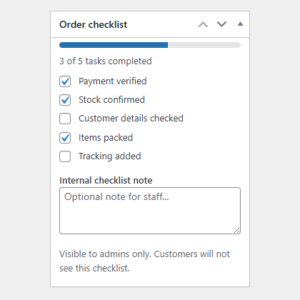
WooCommerce Order Checklist
Adds an internal checklist to WooCommerce orders so store staff can track fulfillment, verification, and custom order tasks.
-
WooCommerce Order Duplicator
Duplicate WooCommerce orders with one click, bulk actions, settings, notes support, and HPOS compatibility.
-
WooCommerce Order Item Cost Editor
Edit WooCommerce individual order item prices (not just the line total) with the “WooCommerce Order Item Cost Editor” plugin.
-
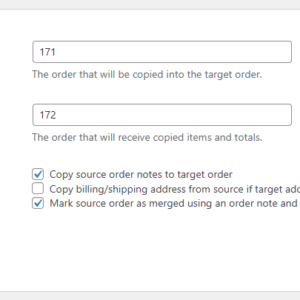
WooCommerce Order Merge
Merge WooCommerce order items, fees, shipping lines, coupons, notes, and customer details into a target order without deleting source orders.
-
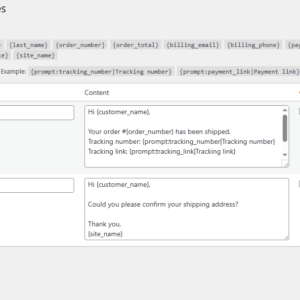
WooCommerce Order Note Templates
Create reusable order note templates and insert them into WooCommerce orders with one click, including prompt-based variables.
-
WooCommerce Order Splitter
Split selected WooCommerce order items into a new child order from the admin order screen.
-
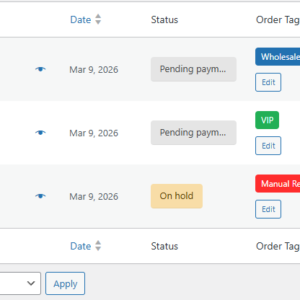
WooCommerce Order Tags
Tag, organize, and find WooCommerce orders faster.
-
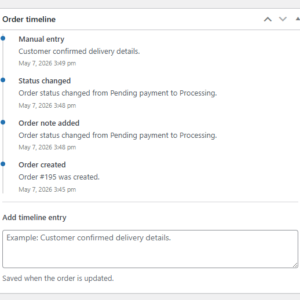
WooCommerce Order Timeline
Adds a clean internal order timeline to WooCommerce orders, showing key order events, notes, status changes, and manual timeline entries.