Managing WooCommerce orders often involves more than simply changing an order status from Processing to Completed. Depending on your store, each order may require several internal steps such as verifying payment, checking product availability, preparing items, confirming customization details, packing the shipment, or performing a final quality check.
WooCommerce provides order statuses and order notes, but it does not include a built-in checklist for tracking these individual tasks.
In this guide, we’ll explain how a WooCommerce order checklist can improve your fulfillment workflow and how to add an internal checklist directly to WooCommerce orders.
- What Is a WooCommerce Order Checklist?
- Why Use a Checklist for WooCommerce Orders?
- WooCommerce Order Checklist Examples
- Can You Create an Order Checklist in WooCommerce?
- How to Add a Checklist to WooCommerce Orders
- Using Checklists for Order Fulfillment
- WooCommerce Order Checklist Best Practices
- Conclusion
What Is a WooCommerce Order Checklist?
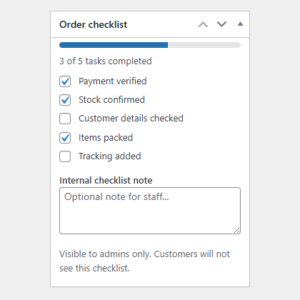
A WooCommerce order checklist is a list of internal tasks that store staff can complete while processing an order.
Instead of relying on memory, separate documents, spreadsheets, or long order notes, employees can follow a predefined set of steps for each order.
For example, a basic fulfillment checklist might look like this:
- Verify payment.
- Confirm customer details.
- Check product availability.
- Pick products from inventory.
- Verify the correct quantities.
- Pack the order.
- Attach the shipping label.
- Perform a final quality check.
As each task is completed, staff can mark it as done and immediately see what still needs attention.
Why Use a Checklist for WooCommerce Orders?
For a small store processing only a few straightforward orders, it may be easy to remember every step manually. As order volume increases or workflows become more complicated, that becomes much more difficult.
An internal checklist helps create a repeatable process for every order.
Reduce Fulfillment Mistakes
When several tasks must be completed before an order can ship, it is easy for one of them to be missed.
A checklist provides a visible reminder of every required step and reduces the chance that an order will be shipped before an important task has been completed.
Create a Consistent Workflow
Without a defined process, different employees may handle the same type of order differently.
Checklists help standardize order processing by ensuring that everyone follows the same sequence of tasks.
Make Order Progress Easier to Understand
An order status such as Processing tells you that an order is being handled, but it does not tell you which individual tasks have already been completed.
An order checklist provides more detailed internal visibility.
For example, an order could still have a Processing status while five out of six fulfillment tasks have already been completed.
Improve Team Handoffs
Orders are often handled by more than one person. One employee may verify the order, another may pick the products, and someone else may pack and ship it.
A shared checklist makes it easier for the next employee to see exactly what has already been done.
WooCommerce Order Checklist Examples
The tasks you add to your checklist will depend on your products and fulfillment process.
Here are several common examples.
Standard Order Fulfillment
- Payment verified.
- Products picked.
- Quantities checked.
- Order packed.
- Shipping label printed.
- Package ready for collection.
Custom or Personalized Products
- Customization instructions reviewed.
- Customer artwork received.
- Personalization confirmed.
- Product customized.
- Final design checked.
- Product packed.
High-Value Orders
- Payment verified.
- Customer details reviewed.
- Shipping address confirmed.
- Products inspected.
- Serial numbers recorded.
- Package photographed.
- Insured shipping selected.
Wholesale or B2B Orders
- Customer account verified.
- Pricing checked.
- Purchase order reviewed.
- Stock confirmed.
- Products picked.
- Packing list prepared.
- Shipment booked.
The important point is that the checklist should match the actual steps your team performs before an order is considered complete.
Can You Create an Order Checklist in WooCommerce?
WooCommerce includes several useful tools for managing orders, including order statuses and order notes.
However, WooCommerce does not provide a dedicated internal task checklist for individual orders by default.
Order Statuses
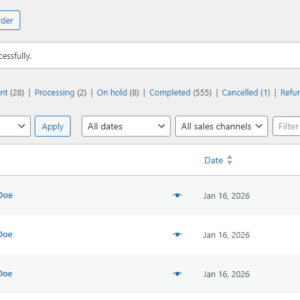
WooCommerce statuses such as Pending payment, Processing, On hold, Completed, Cancelled, and Refunded are useful for tracking the overall state of an order.
However, they are not designed to track multiple small tasks within an order.
Creating a separate custom order status for every fulfillment step can also make the order workflow unnecessarily complicated.
Order Notes
Order notes can be used to record information such as:
- “Payment verified.”
- “Products picked.”
- “Waiting for customer confirmation.”
However, notes are chronological messages rather than structured tasks. Staff need to read through the notes to determine what has and has not been completed.
For repeatable workflows, a checklist is usually easier to understand at a glance.
How to Add a Checklist to WooCommerce Orders
The easiest way to add an internal checklist to WooCommerce orders is to use a dedicated plugin.
WooCommerce Order Checklist by Plugnition adds an internal checklist directly to WooCommerce orders so store staff can track fulfillment, verification, and other custom order tasks.
Step 1: Install WooCommerce Order Checklist
Install and activate the WooCommerce Order Checklist plugin on your WordPress site.
Once activated, the plugin adds checklist functionality to your WooCommerce order workflow.
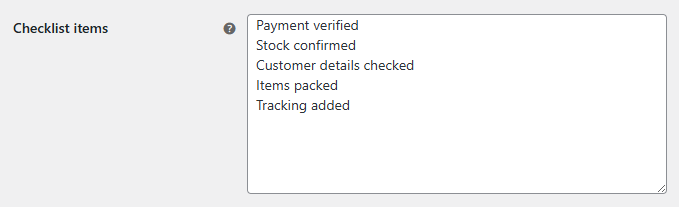
Step 2: Create the Tasks Your Team Needs
Decide which steps should be completed for your orders.
A simple fulfillment workflow might include:
- Verify order.
- Pick products.
- Check quantities.
- Pack order.
- Print shipping label.
- Final check.
Keep checklist items short and action-oriented so employees can quickly understand what needs to be done.
Step 3: Open a WooCommerce Order
Go to:
WooCommerce → Orders
Open the order you want to process.
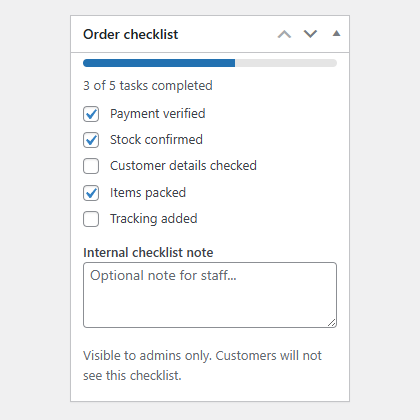
The internal checklist allows staff to track the tasks associated with that order from the WooCommerce admin area.
Step 4: Mark Tasks as Completed
As each part of the order workflow is completed, mark the corresponding checklist item as done.
This gives anyone reviewing the order a clearer picture of its current progress without needing to reconstruct the workflow from notes or messages.
Step 5: Complete the Order
Once all required fulfillment tasks have been completed and the order is ready, you can continue with your normal WooCommerce workflow and update the order status as appropriate.
Using Checklists for Order Fulfillment
A checklist is particularly useful when an order passes through several stages before shipping.
For example, your workflow might look like this:
- Customer places an order.
- Payment is verified.
- Products are picked from inventory.
- Items and quantities are checked.
- Products are packed.
- Shipping documentation is prepared.
- A final quality check is performed.
- The order is shipped.
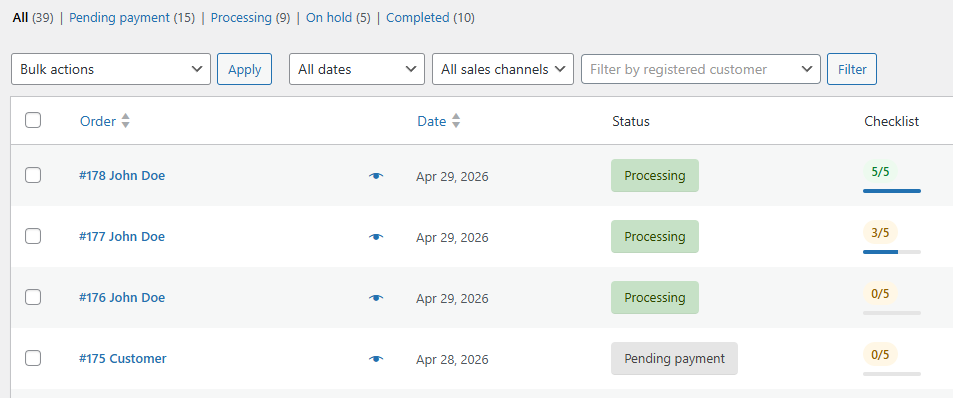
WooCommerce may show the order as Processing throughout most of this workflow.
The checklist provides an additional internal layer of detail, allowing your team to see the individual tasks that have been completed while keeping WooCommerce’s standard order statuses intact.
WooCommerce Order Checklist Best Practices
A checklist works best when it remains simple and closely matches your real fulfillment process.
Keep Tasks Specific
Avoid vague checklist items such as:
Check order.
Instead, use more specific actions such as:
- Verify payment.
- Confirm shipping address.
- Check product quantity.
Specific tasks make it much clearer when an item can be marked as complete.
Don’t Add Unnecessary Tasks
A checklist with dozens of unnecessary items can slow employees down instead of helping them.
Include tasks that genuinely need to be verified before an order moves to the next stage.
Use the Same Workflow Across Your Team
The biggest benefit of a checklist comes from consistency.
If everyone follows the same process, it becomes easier to train new employees, identify workflow problems, and reduce fulfillment mistakes.
Review Your Checklist Periodically
Your fulfillment process may change as your store grows.
Review your checklist periodically and remove steps that are no longer necessary or add new ones when your workflow changes.
Use Checklists Alongside WooCommerce Order Statuses
A checklist should complement WooCommerce order statuses rather than replace them.
Use statuses to represent the overall state of the order and checklist items to track the detailed internal work required to move that order forward.
Conclusion
WooCommerce order statuses are useful for tracking the overall state of an order, but they do not show every internal task that needs to be completed during fulfillment.
Adding an order checklist gives your team a simple way to track those smaller steps, create a consistent fulfillment process, improve handoffs between employees, and reduce the chance of important tasks being forgotten.
If you want to add structured internal tasks directly to your WooCommerce orders, WooCommerce Order Checklist provides a straightforward way to track fulfillment, verification, and custom order tasks from within WooCommerce.
Learn more about WooCommerce Order Checklist →
Recommended Plugins
-
WooCommerce Order Checklist
Adds an internal checklist to WooCommerce orders so store staff can track fulfillment, verification, and custom order tasks.
-
WooCommerce Order Duplicator
Duplicate WooCommerce orders with one click, bulk actions, settings, notes support, and HPOS compatibility.
-
WooCommerce Order Item Cost Editor
Edit WooCommerce individual order item prices (not just the line total) with the “WooCommerce Order Item Cost Editor” plugin.
-
WooCommerce Order Merge
Merge WooCommerce order items, fees, shipping lines, coupons, notes, and customer details into a target order without deleting source orders.
-
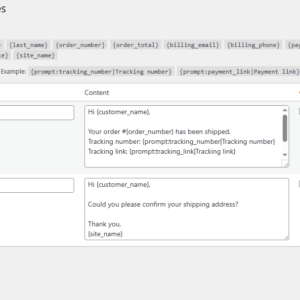
WooCommerce Order Note Templates
Create reusable order note templates and insert them into WooCommerce orders with one click, including prompt-based variables.
-
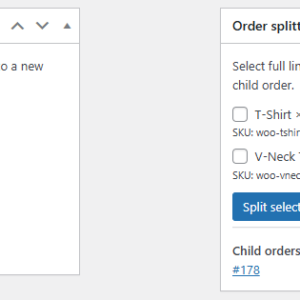
WooCommerce Order Splitter
Split selected WooCommerce order items into a new child order from the admin order screen.
-
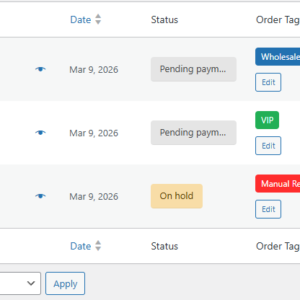
WooCommerce Order Tags
Tag, organize, and find WooCommerce orders faster.
-
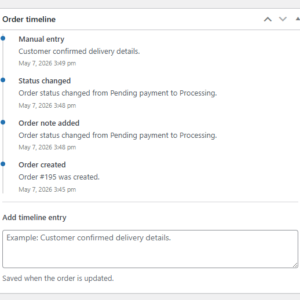
WooCommerce Order Timeline
Adds a clean internal order timeline to WooCommerce orders, showing key order events, notes, status changes, and manual timeline entries.