Manufacturer Part Numbers (MPNs) are commonly used to identify products created by a specific manufacturer. They are especially important for stores selling branded products, replacement parts, electronics, automotive components, tools, and other products that may be listed across multiple retailers.
WooCommerce does not provide a dedicated MPN field by default. If you want to store, display, and use MPNs for your products and variations, you need to add this functionality separately.
In this guide, we’ll explain what an MPN is, how it differs from SKU and GTIN, and how to add MPNs to WooCommerce products.
- What Is an MPN?
- MPN vs SKU vs GTIN
- Why Add MPNs to WooCommerce Products?
- How to Add an MPN to WooCommerce
- Adding MPNs to Simple Products
- Adding MPNs to Product Variations
- Displaying the MPN on Product Pages
- Adding MPN to Structured Data
- MPNs and Google Shopping
- WooCommerce MPN Best Practices
What Is an MPN?
MPN stands for Manufacturer Part Number. It is a product identifier assigned by the manufacturer to a specific product or product variation.
Unlike a store SKU, which is created internally by the merchant, an MPN normally remains the same regardless of which retailer sells the product.
For example, if several online stores sell the same replacement part, they may all use different SKUs internally, while the manufacturer’s MPN remains identical.
This makes MPNs useful for:
- Identifying exact products and replacement parts.
- Matching products between different stores and catalogs.
- Improving product feed accuracy.
- Providing additional product information to search engines.
- Helping customers confirm that they are purchasing the correct item.
MPN vs SKU vs GTIN
MPN, SKU, and GTIN are all product identifiers, but they serve different purposes.
SKU
An SKU, or Stock Keeping Unit, is an identifier created by the store itself. WooCommerce includes a built-in SKU field for products and variations.
Two different stores selling the same product will usually use different SKUs.
MPN
An MPN is assigned by the manufacturer. The same product sold by different retailers should normally have the same MPN.
GTIN
A GTIN, or Global Trade Item Number, is a standardized global product identifier. Examples include UPC, EAN, ISBN, and JAN identifiers.
A product can therefore have all three identifiers at the same time:
- SKU: your store’s internal identifier.
- MPN: the manufacturer’s identifier.
- GTIN: a globally standardized identifier.
Why Add MPNs to WooCommerce Products?
Adding MPNs can be useful both for store management and for customers.
For stores that sell products with manufacturer-defined identifiers, displaying the MPN allows customers to verify that they have found the exact product they need.
This is particularly valuable for products such as:
- Automotive parts.
- Electronics and components.
- Computer hardware.
- Industrial equipment.
- Tools and machinery.
- Appliance replacement parts.
- Branded accessories.
MPNs can also be used in structured product data and external product feeds, making it easier for search engines and shopping platforms to identify your products correctly.
How to Add an MPN to WooCommerce
WooCommerce includes an SKU field but does not include a dedicated Manufacturer Part Number field.
One way to add this functionality is with the WooCommerce MPN plugin.
The plugin adds a dedicated MPN field to WooCommerce products and allows you to manage manufacturer part numbers directly from the product editor.
You can then use these values throughout your store, including on product pages and in structured product data.
Adding MPNs to Simple Products
For a simple WooCommerce product, each product normally has a single Manufacturer Part Number.
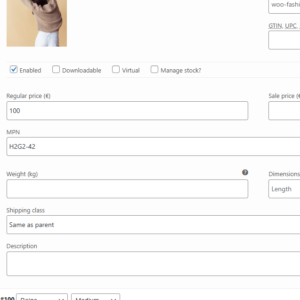
After installing and activating the WooCommerce MPN plugin, you can edit a product and enter its MPN in the dedicated product field.
For example:
MPN: ABC-12345The MPN is stored with the product and can then be displayed on the frontend or included in structured data.
Using a dedicated field is preferable to adding the MPN manually to the product description because it keeps the value structured and reusable.
Adding MPNs to Product Variations
Variable products often require separate MPN values for individual variations.
For example, a manufacturer may assign a different part number to each size, color, model, or configuration of the same product.
Consider a product with three variations:
| Variation | MPN |
|---|---|
| Black / Small | ABC-BLK-S |
| Black / Medium | ABC-BLK-M |
| Black / Large | ABC-BLK-L |
In this situation, assigning the MPN only to the parent variable product would not be sufficient.
The WooCommerce MPN plugin supports MPN values for individual product variations, allowing each variation to have its own manufacturer part number.
Displaying the MPN on Product Pages
Once an MPN has been added to a product, you may also want customers to see it on the product page.
Displaying the MPN can be especially useful when customers are searching for an exact model or replacement part.
A typical product information section might look like this:
SKU: STORE-5482
MPN: ABC-12345
Displaying both values makes it clear that the SKU is your store’s identifier while the MPN is the manufacturer’s identifier.
The WooCommerce MPN plugin can display MPN information on the frontend automatically, so you do not need to manually add the number to every product description.
Adding MPN to WooCommerce Structured Data
Structured data helps search engines understand the information on a product page.
Product structured data can contain identifiers such as:
- SKU
- MPN
- GTIN
- Brand
If your products have manufacturer part numbers, including the MPN in structured product data can provide search engines with another way to identify the exact product being sold.
Instead of storing the MPN only as visible text in the product description, using a dedicated WooCommerce MPN field makes it possible to reuse the value programmatically.
The WooCommerce MPN plugin can add the stored MPN value to the relevant product structured data automatically.
MPNs and Google Shopping
Product identifiers are also commonly used by shopping feeds and product advertising platforms.
Depending on the product, a feed may contain identifiers such as:
brand
gtin
mpn
If a manufacturer provides an MPN for a product, it is generally best to store the original manufacturer-assigned value rather than creating your own.
Using a dedicated MPN field also makes it easier to integrate the value with product feed plugins or custom export systems.
WooCommerce MPN Best Practices
Use the Manufacturer’s Original MPN
Do not create your own MPN simply because a product does not have one. An MPN should normally be the identifier assigned by the manufacturer.
Do Not Use Your SKU as the MPN
Although both values identify products, they have different meanings. Keep your WooCommerce SKU and manufacturer MPN in separate fields.
Store MPNs as Structured Product Data
A dedicated product field is more useful than placing the MPN only in the product description. Structured values can be displayed, exported, queried, or passed to other integrations later.
Add MPNs to Individual Variations
If the manufacturer assigns different part numbers to different product variations, store the correct MPN on each variation rather than only on the parent product.
Keep MPN Formatting Consistent
Use the manufacturer’s formatting exactly where possible, including letters, numbers, dashes, or other characters.
Conclusion
WooCommerce provides built-in support for SKUs, but many stores also need Manufacturer Part Numbers to identify products accurately.
Adding a dedicated MPN field allows you to keep manufacturer identifiers separate from your internal SKUs, support product variations correctly, display part numbers to customers, and reuse the information in structured data and product feeds.
If you need an easy way to add MPN support to your store, the WooCommerce MPN plugin adds dedicated MPN fields for WooCommerce products and variations, frontend display options, and structured data integration.
Recommended Plugins
-
WooCommerce MPN
Add Manufacturer Part Numbers (MPNs) to your WooCommerce products to improve product identification, catalog accuracy, and marketplace compatibility.
-
WooCommerce Product Expiration Dates
Set expiration dates for WooCommerce products and automatically expire them by date.
-
WooCommerce Restock Prediction & Alerts
Predict which WooCommerce products may run out of stock soon based on recent sales and alert store admins before stockouts happen.