WooCommerce makes it easy to accept immediate online payments, but not every customer pays during checkout. Wholesalers and trade accounts may purchase products on credit and pay several days or weeks later.
Once you allow delayed payments, you need a reliable way to answer some important questions:
- Which customers currently owe money?
- How much does each customer owe?
- Which invoices are overdue?
- Which payments have already been received?
- How long have outstanding balances remained unpaid?
This process is known as accounts receivable management. In this guide, we will explain how to manage accounts receivable in WooCommerce, organize customer balances, record payments, monitor overdue invoices, and reduce the amount of time spent maintaining spreadsheets.
What Is Accounts Receivable in WooCommerce?
Accounts receivable, commonly shortened to AR, represents money that customers owe your business for products or services that have already been supplied or invoiced.
For example, suppose a wholesale customer places a WooCommerce order for $1,000 using Net 30 payment terms. You process the order immediately, but the customer has 30 days to pay. Until you receive the payment, the $1,000 is recorded as an outstanding receivable.
When the customer pays $600, the outstanding balance becomes $400. After the remaining $400 is received, the customer’s balance returns to zero.
A basic accounts receivable record therefore needs to track:
- Orders or invoices that increase the customer’s balance.
- Payments that reduce the customer’s balance.
- Credits, refunds, or adjustments.
- The current amount owed by the customer.
- The age and due date of each outstanding invoice.
Who Needs Accounts Receivable Management?
You may need an accounts receivable system if your WooCommerce store supports any of the following workflows:
- B2B or wholesale purchasing.
- Net 15, Net 30, Net 60, or custom payment terms.
- Purchase orders.
- Payment by invoice.
- Direct bank transfer or check payments.
- Trade or customer credit accounts.
- Manual orders created by administrators.
- Customers who make one payment covering several orders.
- Partial or installment payments.
Accounts receivable management is less important when every order is paid immediately by card, wallet, or another real-time payment method. However, it becomes essential when there is a delay between creating an order and receiving the money.
Can WooCommerce Track Accounts Receivable by Default?
WooCommerce tracks the status of individual orders. For example, an order can be marked as Pending payment, On hold, Processing, or Completed.
These statuses are useful, but they are not a complete customer-level accounts receivable system. WooCommerce defines Pending payment as an order for which payment has not been made, while On hold is normally used when payment requires confirmation. Processing generally indicates that payment has been received and the order is waiting for fulfillment. Statuses tell you what is happening with an individual order. They do not automatically provide a complete ledger showing every invoice, payment, adjustment, and running balance for each customer.
WooCommerce also normally accepts one payment per order. Customers can use an invoice email, the Pay action in My Account, or the customer payment page to pay an eligible Pending payment order. Workflow works well when every payment corresponds directly to one order. It becomes harder to manage when a customer:
- Pays several invoices with one bank transfer.
- Makes a partial payment.
- Has a credit carried forward from an earlier transaction.
- Needs a complete account statement.
- Has several overdue orders with different due dates.
For these situations, you need to manage receivables at the customer level rather than relying only on the WooCommerce orders list.
How to Manage Accounts Receivable in WooCommerce
1. Define Your Credit and Payment-Term Policy
Before configuring WooCommerce, define the rules customers must follow when purchasing on credit.
Your policy should answer the following questions:
- Which customers are allowed to pay later?
- What credit limit does each customer receive?
- Do you offer Net 15, Net 30, Net 60, or custom terms?
- When does the payment period begin?
- What happens when an invoice becomes overdue?
- Can customers place new orders while they have an overdue balance?
- Do you charge late-payment fees?
- Who can approve exceptions or extended payment terms?
Documenting these rules helps your staff apply the same process consistently. It also reduces confusion when customers ask about due dates, balances, or purchasing limits.
2. Decide Which WooCommerce Orders Become Receivables
Not every WooCommerce order should necessarily increase a customer’s accounts receivable balance.
For example, you may only want to include orders that:
- Use an invoice or account-credit payment method.
- Belong to approved wholesale customers.
- Have reached a specific order status.
- Were manually approved by a store manager.
- Have already been fulfilled.
Be careful when using order statuses as payment indicators. A Completed order means that fulfillment is finished, but your store’s exact payment workflow may depend on the selected gateway and configuration. Choose the status that accurately represents payment in your business rather than assuming that every Completed order follows the same process.
3. Treat WooCommerce Orders as Customer Invoices
In a simple WooCommerce accounts receivable workflow, each qualifying order can act as an invoice.
The order provides most of the information needed for the receivable:
- Customer name and billing details.
- Order number.
- Order date.
- Products or services purchased.
- Taxes and shipping charges.
- Total amount due.
- Payment method.
- Order notes and transaction history.
You should also record the invoice due date. For a Net 30 customer, this may be 30 days after the invoice or order date. Some businesses calculate the due date from the delivery date instead, so use the method defined in your customer agreement.
4. Maintain a Separate Balance for Each Customer
A customer’s accounts receivable balance should be calculated from all relevant invoices and payments:
Customer balance = Total invoices − Total payments − Credits
Consider a customer with the following activity:
- Order #1001: $500.
- Order #1015: $750.
- Payment received: $800.
The customer’s outstanding balance is:
$500 + $750 − $800 = $450
This customer-level view is much more useful than reviewing each order individually. It allows your team to immediately see how much the customer owes across their entire account.
5. Record Every Customer Payment
Record payments as soon as they are received. Depending on your store, payments may come from:
- Credit or debit cards.
- Direct bank transfers.
- Checks.
- Cash payments.
- External payment processors.
- Manual accounting adjustments.
Each payment record should include:
- The customer.
- The amount received.
- The payment date.
- The payment method.
- A bank or transaction reference.
- Any relevant internal notes.
Online payments can often be recorded automatically when an order reaches the appropriate paid status. Offline payments normally require confirmation or manual entry by a store manager.
Never change an order status simply to make the accounts receivable balance look correct. The order status should accurately represent the order workflow, while a payment record should represent the money that was actually received.
6. Reconcile Payments Regularly
Reconciliation means comparing the payments recorded in WooCommerce with the transactions shown by your bank, payment gateway, or accounting system.
A regular reconciliation process can help you identify:
- Payments that were received but not recorded.
- Duplicate payment entries.
- Incorrect payment amounts.
- Bank transfers assigned to the wrong customer.
- Refunds that were not reflected in the customer balance.
- Gateway payments that failed or were reversed.
For a small store, weekly reconciliation may be sufficient. Stores with higher sales volume or many credit customers may need to reconcile payments daily.
7. Generate Customer Statements
A customer statement summarizes the activity on a customer’s account over a selected period.
A useful accounts receivable statement should include:
- Opening balance.
- Orders or invoices.
- Invoice dates.
- Payments received.
- Credits and adjustments.
- Current outstanding balance.
- Overdue amount.
Statements make it easier to resolve payment questions because both the customer and store manager can see the same transaction history.
They are particularly valuable for B2B customers who place several orders per month and submit one combined payment.
8. Monitor Receivables With an Aging Report
An accounts receivable aging report groups unpaid invoices according to how long they have been outstanding.
Common aging buckets include:
- Current.
- 1–30 days overdue.
- 31–60 days overdue.
- 61–90 days overdue.
- More than 90 days overdue.
Aging reports help you identify which customers require immediate follow-up and which balances are becoming increasingly difficult to collect. The Plugnition Accounts Receivable Pro plugin provides these standard aging categories inside WooCommerce. Run aging reports regularly instead of waiting until cash flow becomes a problem. A small overdue balance is usually easier to resolve after 10 days than after 100 days.
9. Establish a Consistent Collection Process
Create a standard follow-up schedule for unpaid invoices. For example:
- Before the due date: Send a friendly reminder with the invoice details.
- 1–7 days overdue: Notify the customer that payment is overdue.
- 15 days overdue: Send a second reminder and request a payment date.
- 30 days overdue: Contact the customer directly and consider temporarily restricting additional credit purchases.
- 60 or more days overdue: Escalate the account according to your credit policy.
Keep the wording professional and include all information the customer needs to complete the payment:
- Outstanding amount.
- Invoice or order numbers.
- Original due dates.
- Available payment methods.
- Payment instructions.
- Contact details for questions.
Consistent reminders are usually more effective than waiting several months and then sending an urgent collection message.
10. Review Customer Credit Before Accepting New Orders
Before approving another credit order, check the customer’s current balance and payment history.
You may decide to:
- Approve the new order normally.
- Request payment for older invoices first.
- Reduce the customer’s credit limit.
- Require a deposit.
- Temporarily switch the customer to immediate payment.
- Ask a manager to review the account.
A clear receivables overview gives your sales and support teams the information needed to make these decisions without searching through individual orders or asking the accounting department for an updated spreadsheet.
Managing Accounts Receivable With Spreadsheets
Many WooCommerce stores begin by tracking receivables in a spreadsheet. A typical spreadsheet contains columns for:
- Customer.
- Order number.
- Invoice amount.
- Invoice date.
- Due date.
- Payment amount.
- Payment date.
- Outstanding balance.
- Collection notes.
This approach may work when you only have a few credit customers. However, spreadsheets become increasingly difficult to maintain as order volume grows.
Common problems include:
- Entering the same order data twice.
- Forgetting to add new invoices.
- Failing to record a payment.
- Using outdated spreadsheet copies.
- Accidentally changing formulas.
- Giving staff access to inconsistent information.
- Spending time matching WooCommerce orders to spreadsheet rows.
Once manual administration becomes a regular burden, managing receivables directly inside WooCommerce is usually more efficient.
Manage Accounts Receivable Directly Inside WooCommerce
Plugnition Accounts Receivable for WooCommerce adds customer-level receivables management to your WordPress dashboard.
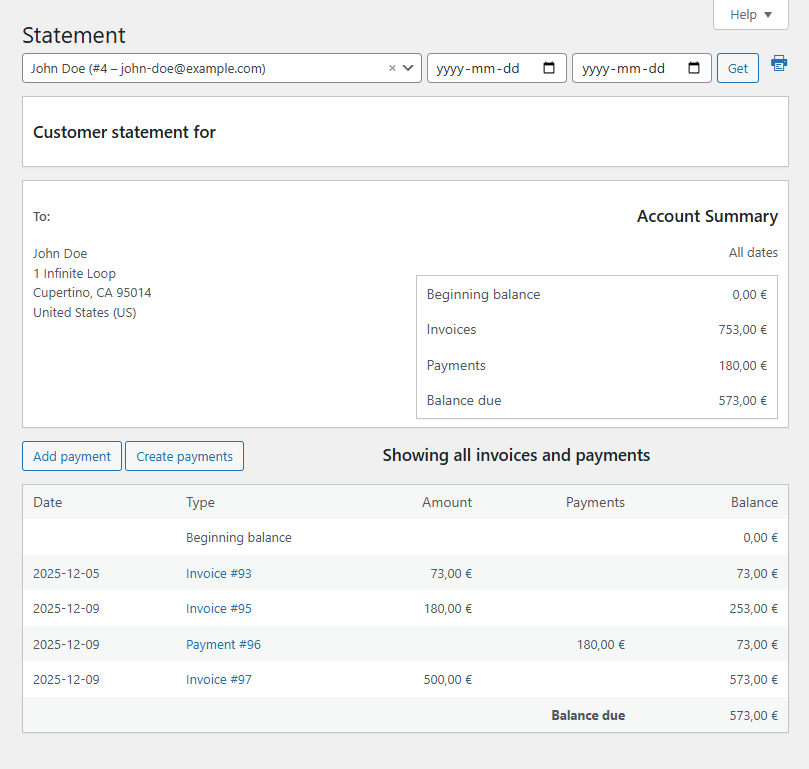
Instead of switching between WooCommerce and a separate spreadsheet, you can:
- Automatically track customer balances.
- Treat WooCommerce orders as invoices.
- Record customer payments manually.
- Create payment records automatically from selected order statuses.
- View receivables from the WordPress Users screen.
- Review statements from customer profile pages.
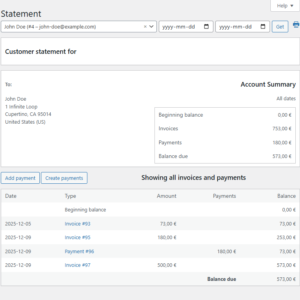
- See invoices, payments, and the current balance in one statement.
- Monitor outstanding customer balances from one place.
The free version provides the core tools needed to track balances, payments, and customer statements. The Pro version adds advanced features such as an accounts receivable aging report and a customer-facing statement in the WooCommerce My Account area. The WooCommerce Accounts Receivable Workflow:
- A customer places a WooCommerce order using invoice or credit terms.
- The order is added to the customer’s accounts receivable statement.
- The customer’s outstanding balance increases.
- The customer pays online, by bank transfer, by check, or through another method.
- The payment is recorded automatically or entered manually.
- The customer’s balance is recalculated.
- Store managers review statements and aging reports to identify overdue balances.
This creates a clear transaction history without requiring staff to maintain the same information in multiple systems.
Accounts Receivable Best Practices for WooCommerce
Keep Order and Payment Records Separate
An order represents what the customer purchased. A payment represents money received. Keeping these records separate creates a clearer audit trail and makes partial or combined payments easier to understand.
Use Consistent Payment References
Ask customers to include their order number, invoice number, or account reference when making bank transfers. This reduces the time required to identify and assign incoming payments.
Review Overdue Balances Frequently
Review outstanding balances at least once a week. Focus first on large balances and invoices that have moved into older aging categories.
Give Customers Access to Clear Information
Customers are more likely to pay promptly when they can easily see their invoices, payments, and current balance. Clear statements also reduce support requests and payment disputes.
Limit Access to Financial Records
Only trusted administrators, store managers, or accounting staff should be able to create, edit, or delete payment records.
Back Up and Reconcile Your Data
Maintain regular WordPress backups and compare your WooCommerce payment records with your bank or accounting platform. An accounts receivable plugin can improve your operational workflow, but it does not replace formal accounting records where those are legally required.
Frequently Asked Questions
What does accounts receivable mean in WooCommerce?
Accounts receivable represents money customers owe your business for WooCommerce orders that have been invoiced or fulfilled but not yet fully paid.
Can WooCommerce show unpaid orders?
Yes. You can identify individual unpaid orders using statuses such as Pending payment or On hold. However, the standard orders list does not provide a complete customer-level ledger containing every invoice, payment, credit, and running balance.
Can I offer Net 30 payment terms in WooCommerce?
Yes. You can allow approved customers to place orders and pay according to Net 30 or other agreed terms. You will also need a process for recording due dates, tracking balances, and following up on overdue invoices.
Can I record offline payments?
Yes. Bank transfers, checks, cash payments, and other offline transactions can be manually recorded in an accounts receivable system so that the customer’s balance remains accurate.
What is an accounts receivable aging report?
An aging report groups outstanding invoices according to how long they have been unpaid, such as current, 1–30 days overdue, 31–60 days overdue, and more than 90 days overdue.
Can customers view their own statements?
With the appropriate WooCommerce accounts receivable plugin, customers can be given access to statements showing their invoices, payments, outstanding balance, and transaction history from the My Account area.
Does an accounts receivable plugin replace accounting software?
Not necessarily. It can manage the operational side of customer balances and payment tracking inside WooCommerce. Depending on your business and local requirements, you may still need accounting software or a professional accountant for bookkeeping, taxes, and financial reporting.
Conclusion
Managing accounts receivable in WooCommerce requires more than identifying orders marked as Pending payment. You need a consistent system for recording invoices, entering payments, calculating customer balances, generating statements, reviewing overdue invoices, and following up with customers.
Spreadsheets may be sufficient for a small number of accounts, but they become difficult to maintain as your business grows. Managing customer balances directly inside WooCommerce reduces duplicate data entry and gives your team a clearer view of who owes money.
Plugnition Accounts Receivable for WooCommerce provides a centralized way to track customer balances, record payments, generate statements, and monitor outstanding invoices without leaving the WordPress dashboard.
Download the free version to start tracking WooCommerce customer balances, or compare the Free and Pro versions for advanced features such as aging reports and customer-facing statements.
Recommended Plugins
-
WooCommerce Accounts Receivable
Track customer balances and unpaid orders directly in WooCommerce.
-
WooCommerce Deferred Revenue Tracker
Track deferred revenue for WooCommerce products, generate monthly recognition schedules, backfill schedules for historical orders, adjust future entries on refunds, and export accounting-ready CSV reports.
-
WooCommerce Tax Liability Dashboard
Track WooCommerce tax liability by country, period, and order status with a clear, lightweight admin dashboard and CSV export.