WooCommerce normally displays products in the cart in the order they were added. While this works well for most stores, there are situations where you may want more control over how cart items are organized.
For example, you might want to sort products alphabetically, by price, by quantity, or according to another product property. A predictable cart order can make larger orders easier for customers to review and can also improve the checkout experience for stores with many different products.
In this guide, we’ll look at why you might want to sort WooCommerce cart items, the different ways they can be sorted, and how to automatically control their order.
- How Does WooCommerce Order Cart Items by Default?
- Why Sort WooCommerce Cart Items?
- Admin-Defined vs. Customer-Controlled Cart Sorting
- Ways to Sort WooCommerce Cart Items
- How to Sort WooCommerce Cart Items Automatically
- Examples of WooCommerce Cart Sorting
- When Is Cart Item Sorting Useful?
- Conclusion
How Does WooCommerce Order Cart Items by Default?
By default, WooCommerce generally keeps products in the cart according to the order in which they were added.
If a customer adds Product A, followed by Product B and Product C, the cart will normally display them in that same sequence.
This behavior is simple and predictable, but it does not take product properties such as name, price, quantity, SKU, or category into account.
For a cart containing only a few products, this usually isn’t a problem. However, stores that commonly receive larger or more complex orders may benefit from organizing cart items in a more meaningful way.
Why Sort WooCommerce Cart Items?
Sorting cart items can make the cart easier to scan and understand, particularly when customers purchase many products at once.
For example, alphabetical sorting can make it easier to locate a particular product, while sorting by price can make expensive items more visible. Sorting by quantity may help customers quickly identify products they are purchasing in larger amounts.
A consistent sorting method can also be useful for B2B stores, wholesale stores, large catalogs, and other WooCommerce shops where customers frequently place multi-item orders.
The goal isn’t necessarily to change how customers shop. Instead, sorting gives you more control over how their selected products are presented once they reach the cart.
Admin-Defined vs. Customer-Controlled Cart Sorting
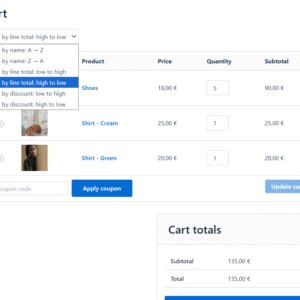
There are two main ways to approach WooCommerce cart item sorting. With admin-defined sorting, the store owner chooses a sorting method in advance, and cart items are automatically displayed in that order for every customer. For example, you could always sort products alphabetically, by price, by quantity, or by SKU. Alternatively, customer-controlled sorting adds a sorting dropdown to the cart, allowing customers to choose how they want their cart items to be arranged. This can be especially useful for larger carts, where one customer may prefer to sort products by name while another may find sorting by price or quantity more convenient. Depending on your store, you can use a predefined sorting method, let customers choose the sorting method themselves, or combine both approaches by providing a default order that customers can override.
Ways to Sort WooCommerce Cart Items
There are several useful ways to organize WooCommerce cart items depending on the type of store and products you sell.
Sort by Product Name
Alphabetical sorting arranges cart items according to their product names.
This can be particularly helpful when customers regularly purchase many different products and need to find a specific item quickly.
Sort by Price
Products can be arranged according to their prices, either from lowest to highest or highest to lowest.
This makes the relative value of items easier to see and can help customers review more expensive purchases before proceeding to checkout.
Sort by Quantity
Sorting by quantity groups products according to how many units the customer has added to the cart.
For example, products with the highest quantities could appear first, making bulk purchases easier to identify.
Sort by SKU
Stores that rely heavily on SKUs may prefer to organize products according to their stock keeping units.
This can be useful for wholesale, inventory-focused, or B2B stores where customers recognize products by SKU rather than by product name.
Sort by Product Data
More advanced sorting can use other product information or custom data to determine the position of each cart item.
The best sorting method depends on how your catalog is structured and how customers typically place orders.
How to Sort WooCommerce Cart Items Automatically
WooCommerce does not provide a built-in setting in the standard admin interface for choosing how cart items should be sorted.
Implementing custom sorting manually therefore usually requires PHP code that modifies the cart item order at the appropriate point in the WooCommerce request.
If you prefer to configure the behavior without maintaining custom code, you can use the WooCommerce Cart Item Sorting plugin.
The plugin is designed to give you control over how products are arranged in the WooCommerce cart, allowing you to configure sorting behavior directly from WordPress rather than building and maintaining a custom solution.
This is especially useful if cart sorting is an important part of your store workflow and you want the behavior to remain manageable as WooCommerce changes over time.
Examples of WooCommerce Cart Sorting
Different stores can benefit from different cart arrangements. Here are a few practical examples.
Wholesale Store
A wholesale customer might add dozens of products to a single order. Sorting the cart alphabetically or by SKU can make it much easier to verify that all required products have been added.
High-Value Products
A store selling products with significantly different prices could sort items by price so that the highest-value products appear together.
This can make it easier for customers to review the most significant parts of their purchase before checkout.
Bulk Orders
If customers commonly order multiple quantities of the same products, sorting by quantity can place the largest quantities at the top of the cart.
This provides a quick way to identify the products that make up the largest portions of the order.
SKU-Based Ordering
Some B2B customers work primarily with product codes rather than product names. Sorting by SKU can make the WooCommerce cart better match purchase orders, inventory lists, or other internal documents.
When Is Cart Item Sorting Useful?
Not every WooCommerce store needs custom cart sorting. If customers normally purchase only one or two products at a time, the default WooCommerce behavior may be perfectly adequate.
Cart sorting becomes more valuable when orders contain many line items or when customers need to review products according to a particular property.
It can be especially useful for:
- Wholesale WooCommerce stores
- B2B stores
- Stores with large product catalogs
- Bulk ordering workflows
- SKU-driven catalogs
- Customers who regularly purchase many products in a single order
In these situations, automatically organizing the cart can make larger orders easier to review and create a more consistent shopping experience.
Conclusion
WooCommerce’s default cart order is suitable for many stores, but it doesn’t provide much control over how products are presented once they have been added to the cart.
Sorting items by product name, price, quantity, SKU, or other product information can make complex carts easier to navigate and review.
If you want to configure cart ordering without writing and maintaining custom PHP code, the WooCommerce Cart Item Sorting plugin provides a straightforward way to add this functionality to your store.
Want more control over your WooCommerce cart? Learn more about WooCommerce Cart Item Sorting and configure how products are organized in your customers’ carts.
Recommended Plugins
-
WooCommerce Cart Item Sorting
Easily reorder WooCommerce cart items for a clearer, more user-friendly cart.
-
WooCommerce Cart Share Links
Let customers generate a shareable link to their WooCommerce cart so others can instantly load the same products and quantities.