Customers who already know what they need should not have to open a separate product page for every item. A WooCommerce quick order form displays products together so shoppers can choose quantities, select variations, and add several items to their cart from one page. It is especially useful for wholesale orders, repeat purchases, and catalogs where buyers order by SKU.
- What Is a WooCommerce Quick Order Form?
- When Should You Use One?
- How to Create a Quick Order Form in WooCommerce
- How to Make the Form Easier to Use
- Test the Ordering Experience
- Frequently Asked Questions
What Is a WooCommerce Quick Order Form?
A quick order form presents a group of products in a compact table rather than sending shoppers through individual product pages. Customers can scan the catalog, enter quantities, choose product variations, and add items to the cart with fewer steps.
It can supplement your regular WooCommerce shop. For example, you might keep the standard storefront for browsing and create a separate page for customers who want to place a large or repeat order quickly.
When Should You Use One?
A quick order form works well when customers typically buy several products in the same visit. Common examples include:
- Wholesale and B2B stores: Buyers can enter quantities for multiple products in one place.
- Repeat ordering: Returning customers can find familiar products without browsing the full catalog.
- Parts and supplies: SKU information helps buyers identify the correct items.
- Products with variations: Customers can select options such as size or color within the ordering table.
If customers usually compare detailed photos and descriptions before buying a single item, your regular product pages still serve an important purpose. The quick order page gives customers another way to shop when speed matters.
How to Create a Quick Order Form in WooCommerce
WooCommerce does not provide this type of multi-product table as a standard shop layout. For this walkthrough, we will use Plugnition Quick Order Form for WooCommerce, which displays simple and variable products in a searchable table and supports adding multiple products to the cart.
1. Install and activate the plugin
Install the plugin on your WooCommerce site and activate it. Make sure the products you want to show are published and available to purchase.
2. Create a page for the form
In WordPress, go to Pages → Add New. Give the page a clear title, such as “Quick Order,” “Wholesale Order Form,” or “Order by SKU.” Add a short introduction that explains who the page is for and how customers can place an order.
3. Add the quick order form shortcode
Add a Shortcode block to the page and paste the [plugnition_quick_order_form] shortcode. Publish the page, then open it on the front end to check that the product table appears.
4. Choose the products and columns
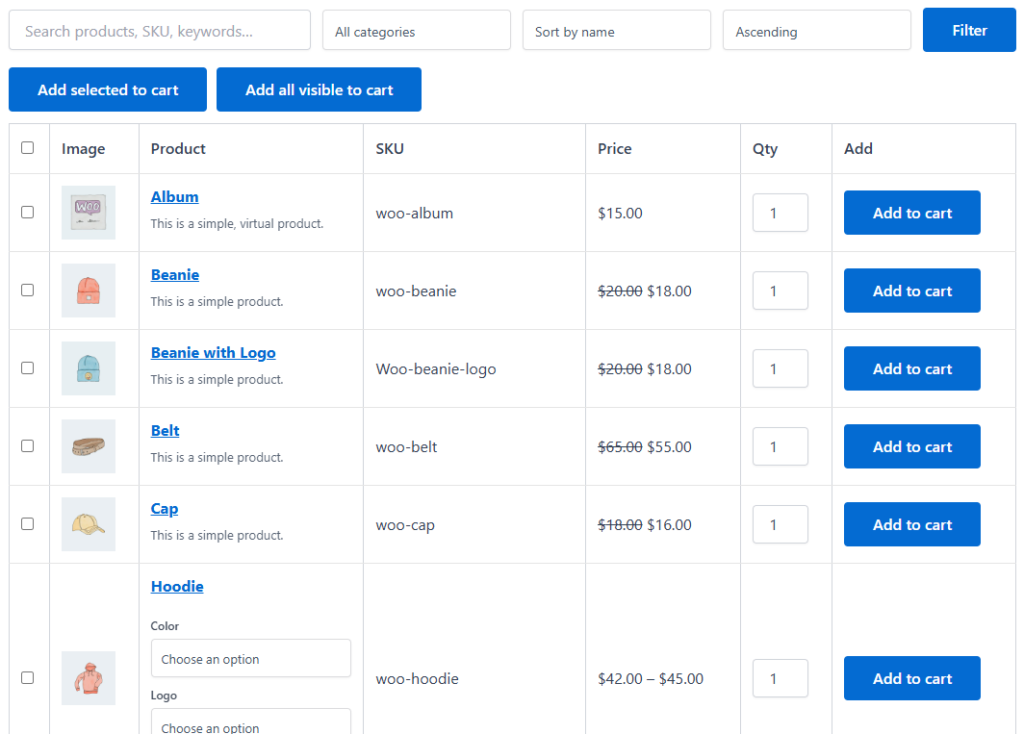
Configure the shortcode options to suit the page. For example, you can limit which products appear, filter by category, show or hide SKU information, and adjust the bulk ordering tools. A dedicated wholesale page might show only your wholesale category, while a general quick order page could cover a broader catalog.
5. Make the page easy to find
Add the new page to your site navigation or link to it from relevant product and category pages. If it is intended for returning customers, consider linking to it from your customer account area or reorder instructions.
How to Make the Form Easier to Use
Start with the information customers need to order confidently: product names, prices, quantities, and, where relevant, SKUs. If you sell variable products, check that shoppers can select the right attributes without opening another page. The Plugnition form updates the matching variation’s price and SKU when options are selected.
Search, category filters, and sorting help customers navigate larger catalogs. Bulk add-to-cart actions are especially useful when buyers need several different products in one order. Avoid showing an overwhelming number of products on a single page if a category-specific form would be clearer.
Test the Ordering Experience
Before sharing the page, try it as a customer:
- Find a simple product using search or a category filter and add it to the cart.
- Select attributes for a variable product and check its displayed price and SKU.
- Add several products using the bulk ordering controls.
- Open the cart and confirm the products, variations, and quantities are correct.
- Repeat the check on a phone to make sure the form is usable on a smaller screen.
Testing with a few real catalog items often reveals whether customers need additional product details, clearer page instructions, or a more focused product selection.
Frequently Asked Questions
Can I keep my normal WooCommerce shop page?
Yes. A quick order form can live on its own page alongside your existing shop and product pages.
Can customers order variable products from the form?
Yes. With Plugnition Quick Order Form, customers can select product attributes in the table before adding the chosen variation to the cart.
Can customers add several products at once?
Yes. The form includes bulk add-to-cart tools so shoppers can select multiple products and add them in one action.
Where should I put the quick order form?
A dedicated page is usually the simplest starting point. Depending on your store, you could create separate ordering pages for wholesale buyers, product categories, or repeat purchases.
Give Repeat Buyers a Faster Way to Order
A good quick order page makes it easy to find the right products, choose quantities and variations, and move to checkout. If your customers regularly purchase several items at a time, Plugnition Quick Order Form for WooCommerce gives you a table-based ordering page that works alongside your existing store.
Recommended Plugins
-
WooCommerce Hide Prices for Guests
Hide WooCommerce product prices from guests and show a custom message instead. Optionally restrict price visibility to admin-verified users only — perfect for B2B, wholesale, and “login to view prices” stores.
-
WooCommerce Quick Order Form
Display WooCommerce products in a fast table layout for quick ordering, bulk purchasing, and repeat buyers.